Product tour
How it actually works. On the real screens
These are screenshots from the live demo, not drawings. You can open the same screens yourself in a minute.
1 · Dashboard
The morning starts with what is on fire
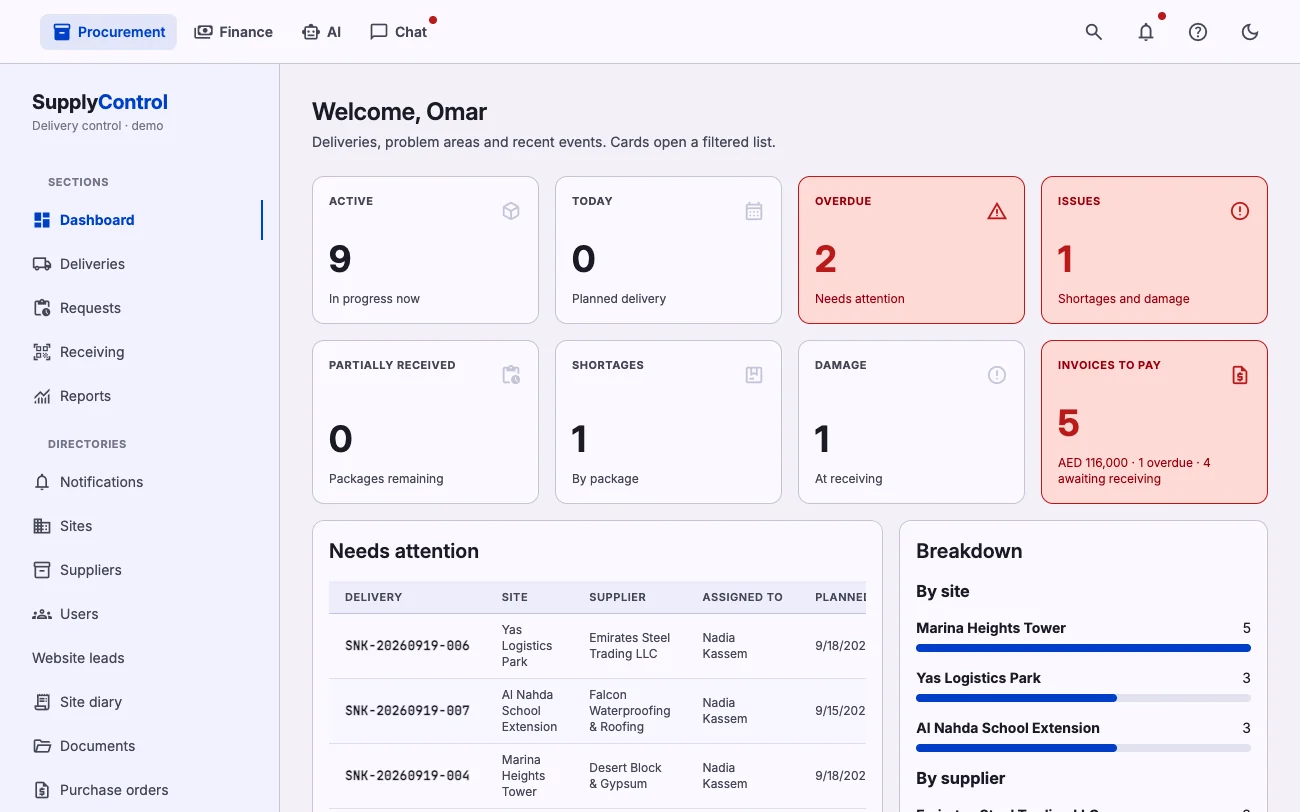
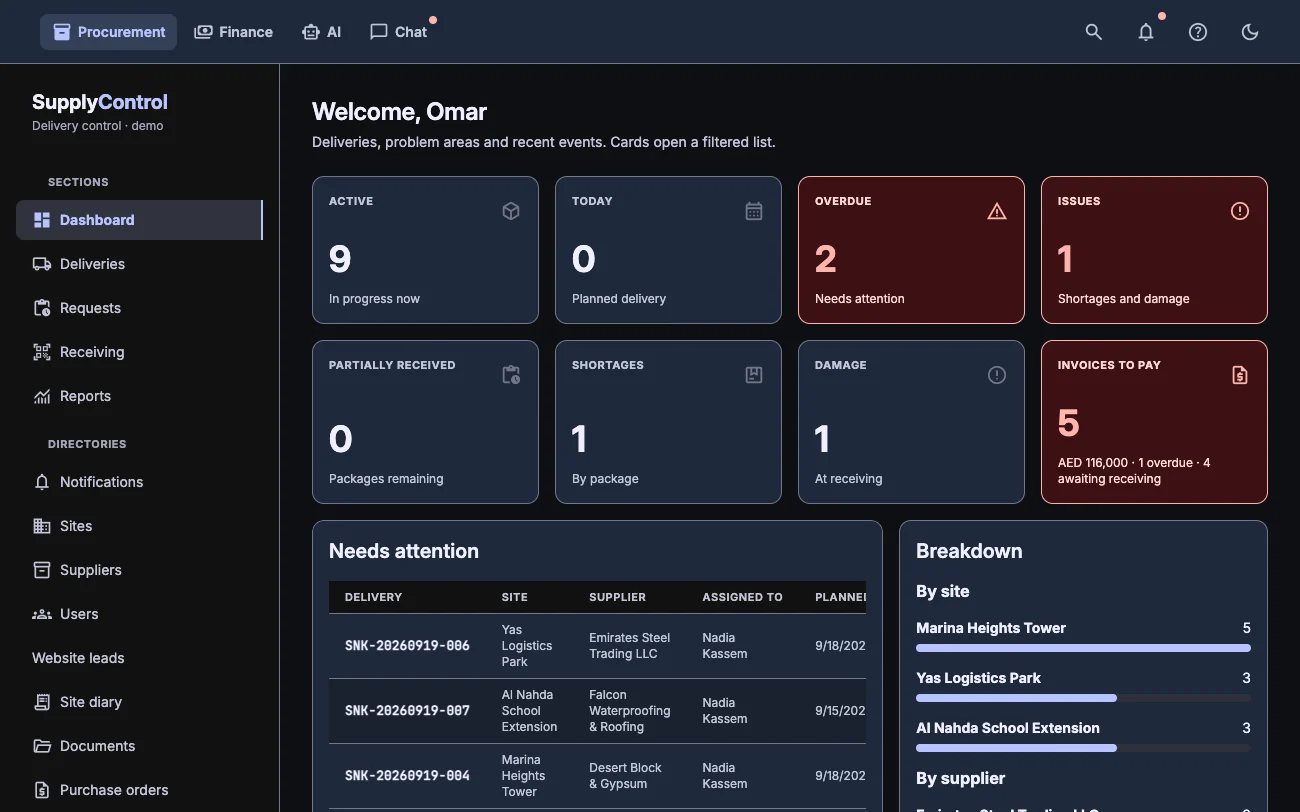
Director and buyer open the same screen: deliveries in progress, what is overdue, where the problems are, and how much is waiting to be paid. Below it, a table of what needs attention and a breakdown by site and supplier.
- Overdue and problem cards stay red until someone closes them
- The invoices tile shows what is due, what is late and what is still waiting for a goods received note
- A daily digest arrives in the morning without anyone asking for it
2 · Deliveries
Register and delivery card: everything about the load in one place
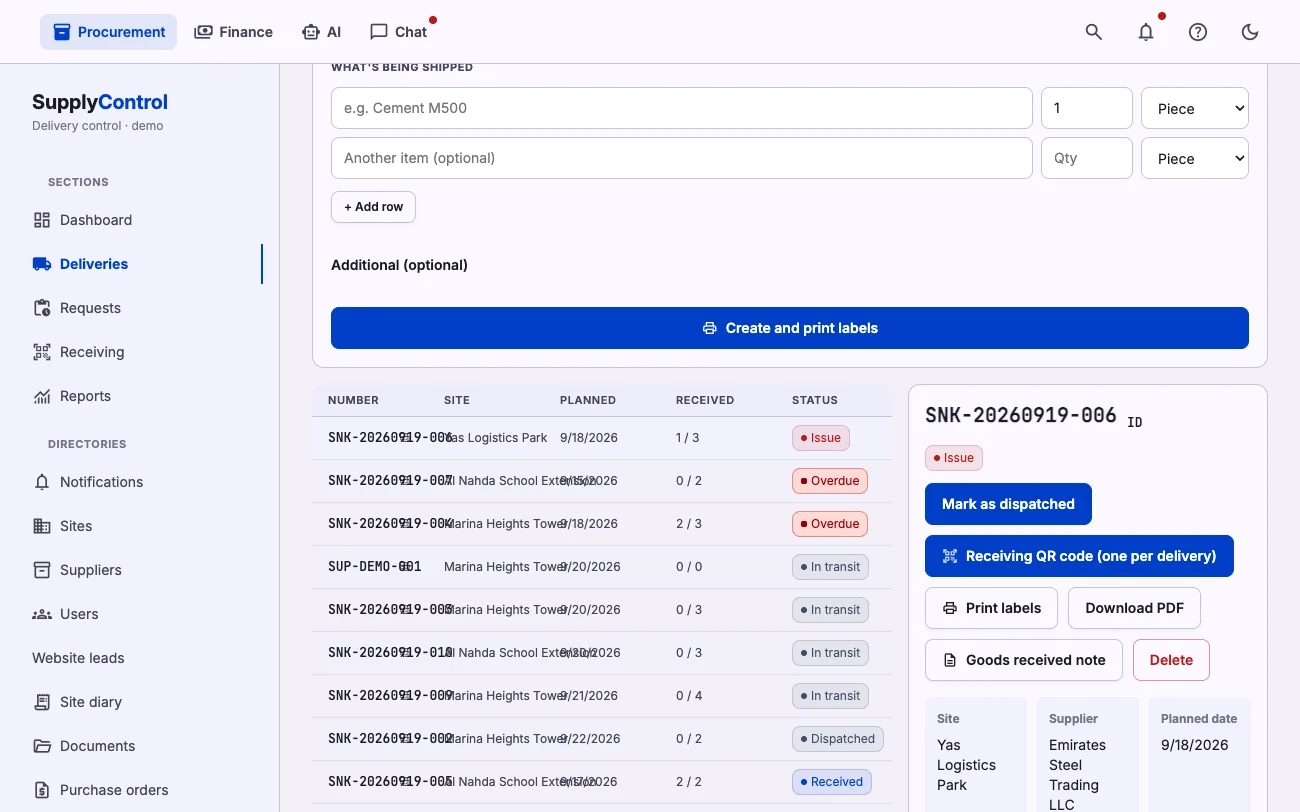
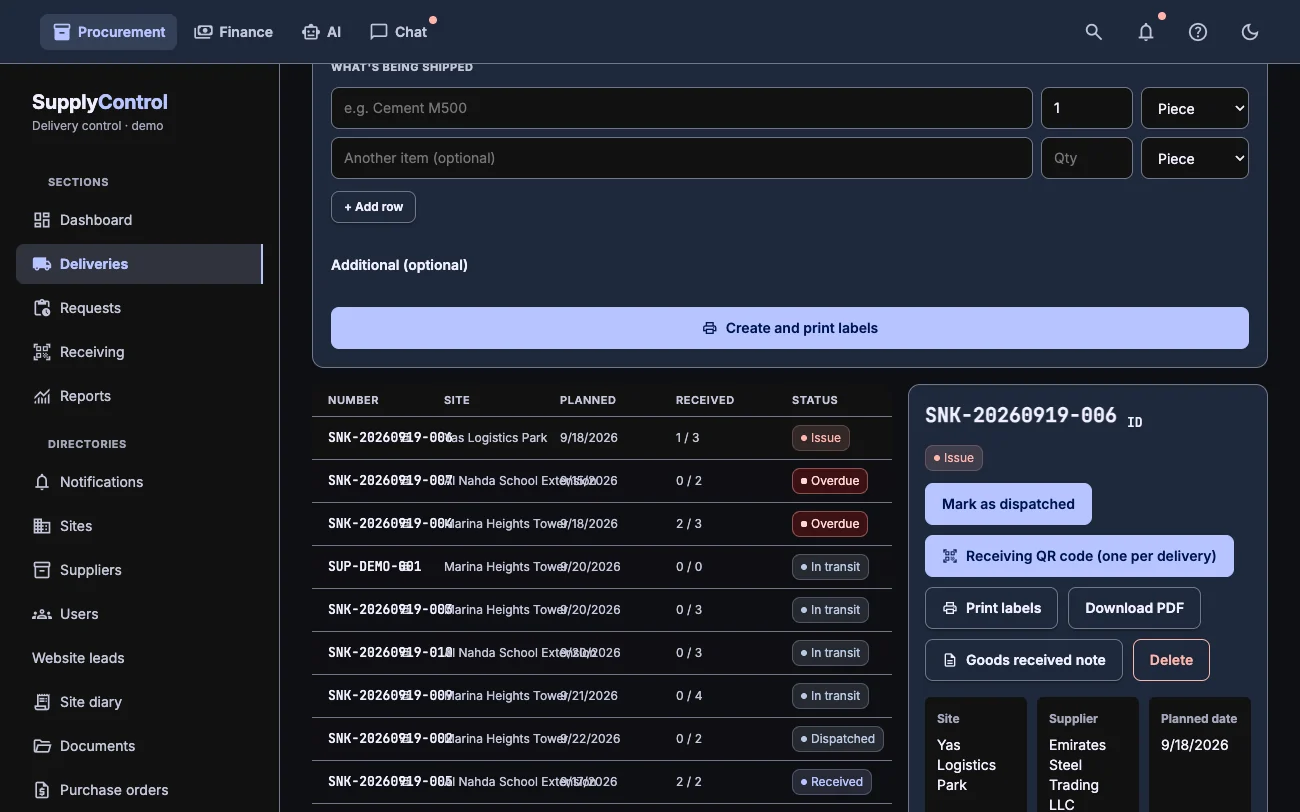
Statuses from Created to Received, planned and actual dates, values and the people responsible. Inside the card: packages with their QR labels, receiving photos, the goods received note, the invoices attached to this delivery, and a log of who changed what.
- A new delivery can be filled in from a photo of the delivery note: AI reads the line items, the total and the invoice number
- Labels for every pallet and box print from one button
- If a similar delivery was created for this site and supplier days ago, the system asks whether this is really a new one
3 · Invoices and payments
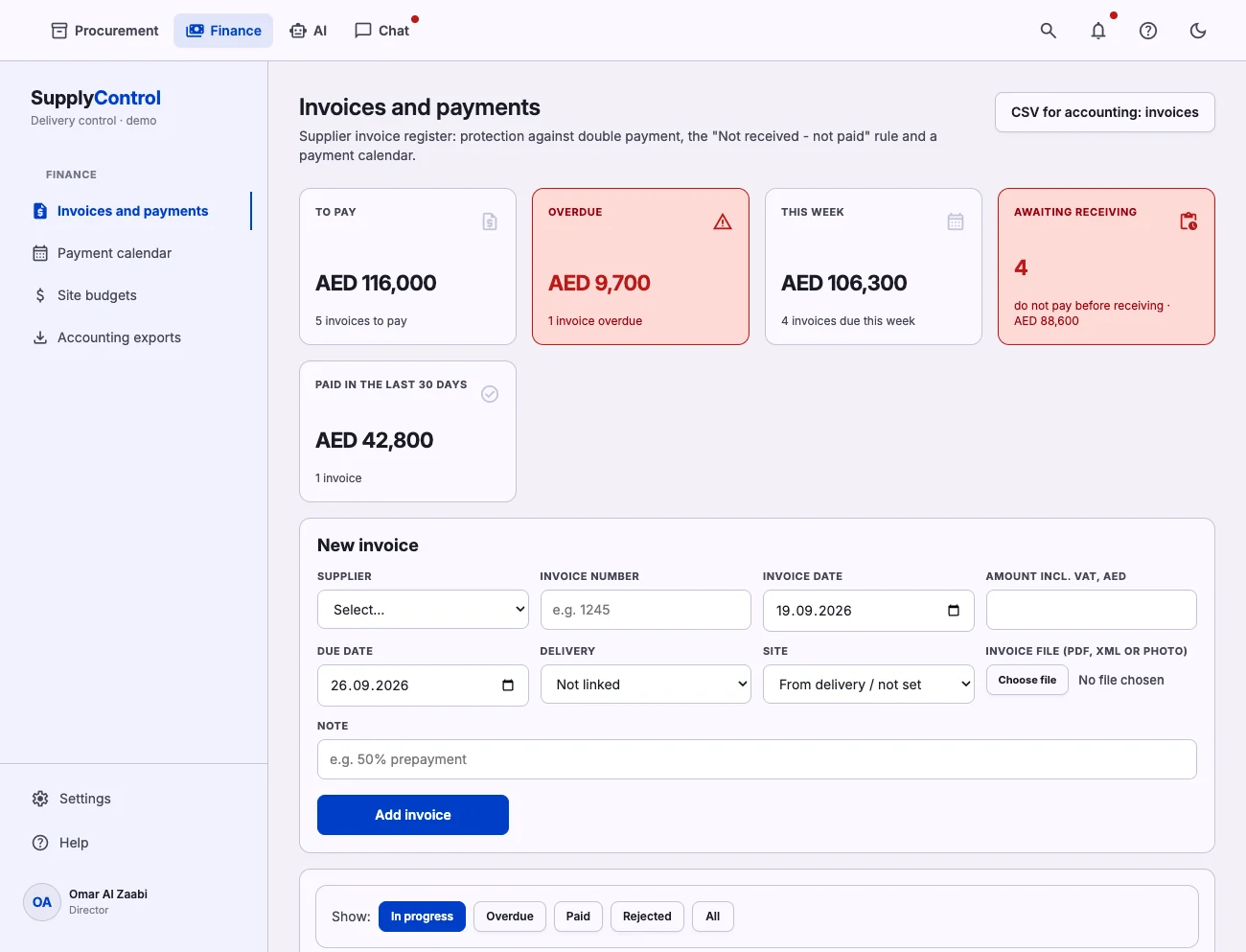
Do not pay twice, and do not pay for what never arrived
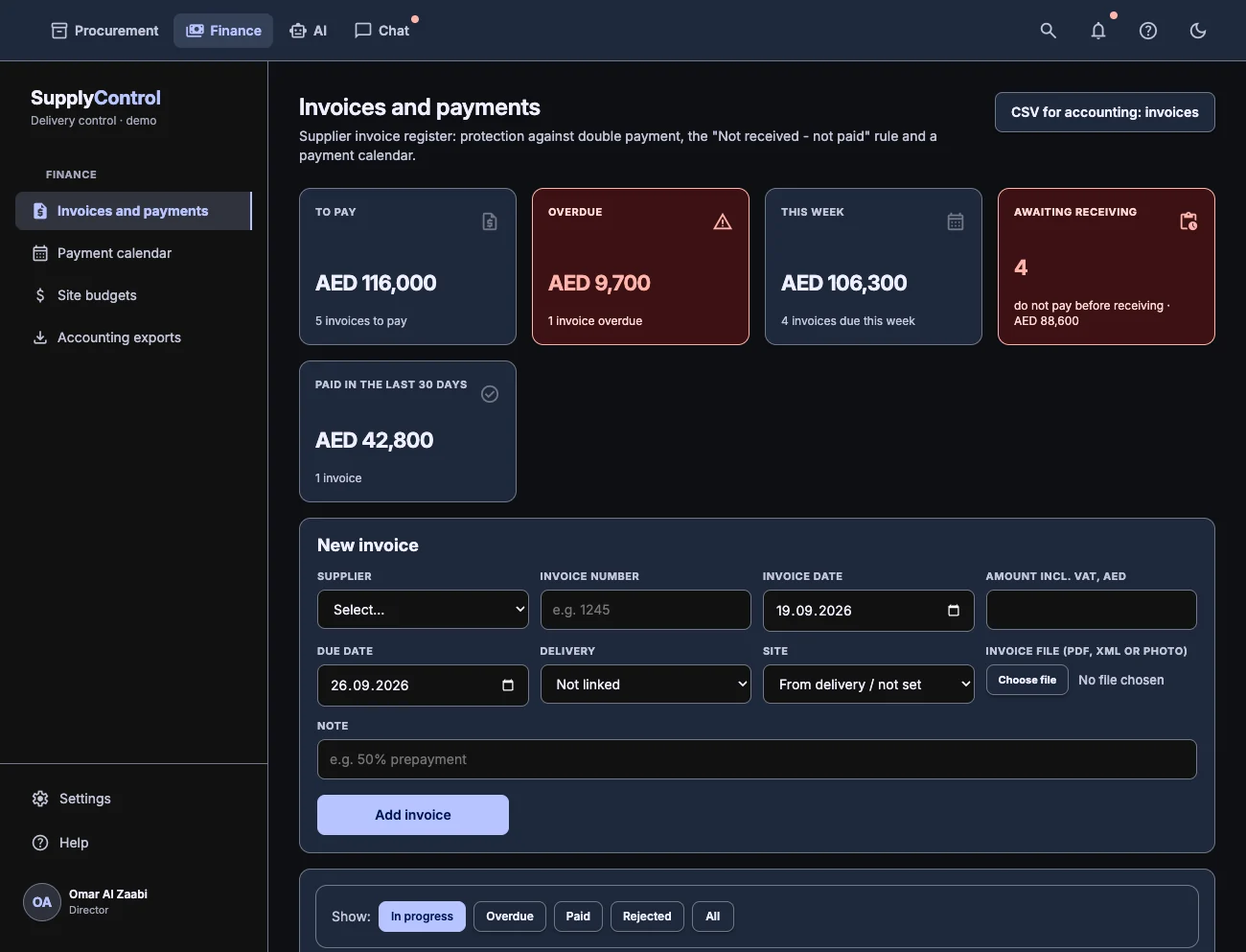
A separate Finance space: every supplier invoice in one list, each one linked to its delivery. Duplicates are caught by number, by amount and by the file itself. Invoices for goods that were not received stay flagged, and payments are laid out week by week in the payment calendar.
- A duplicate is stopped before it is saved: same number from the same supplier, same amount within a week, or the same file again
- Match before you pay: while the goods are not received, the invoice is marked and paying it needs a separate, logged confirmation
- Site budgets sit next to it: ordered, received, invoiced, paid - plus exports for the accountant
4 · QR receiving
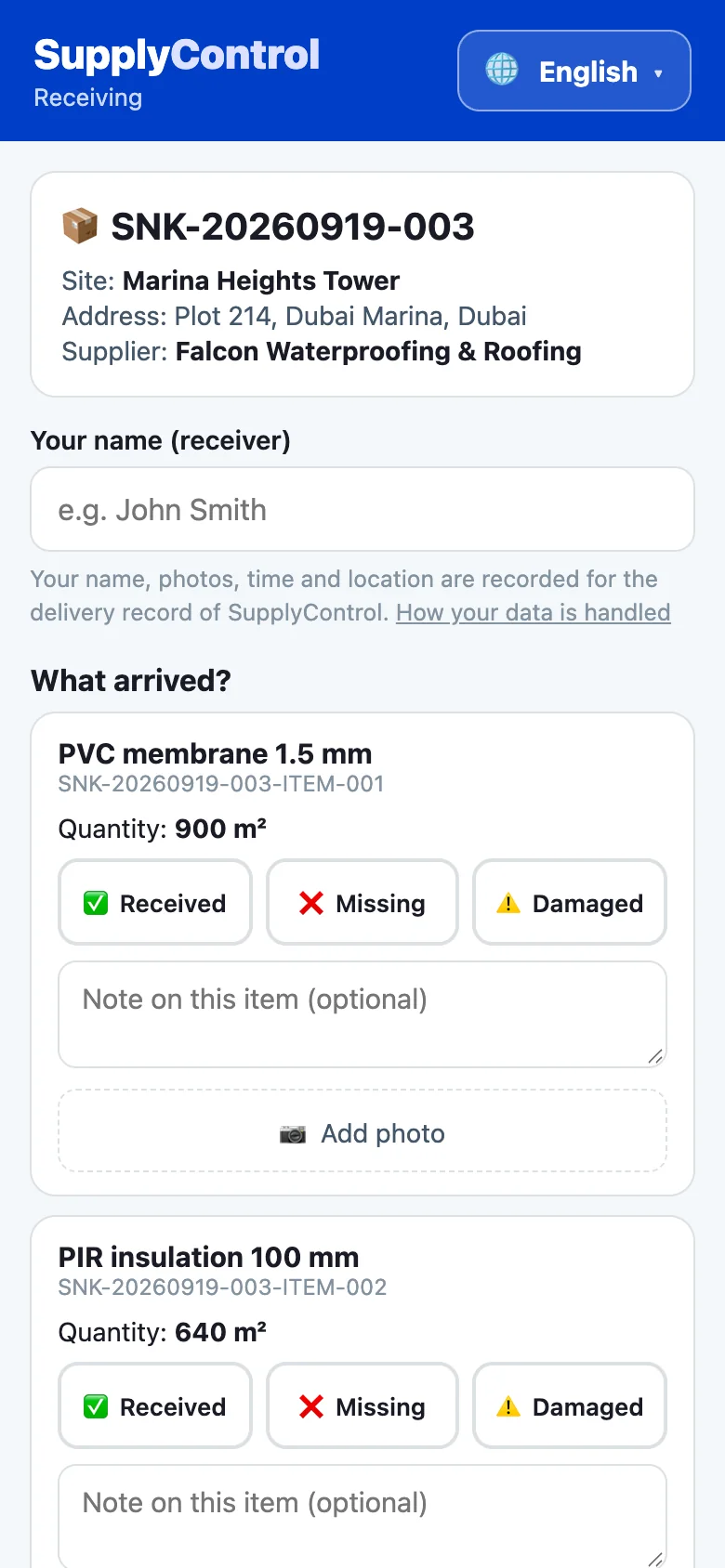
The foreman receives the load from a phone. No login
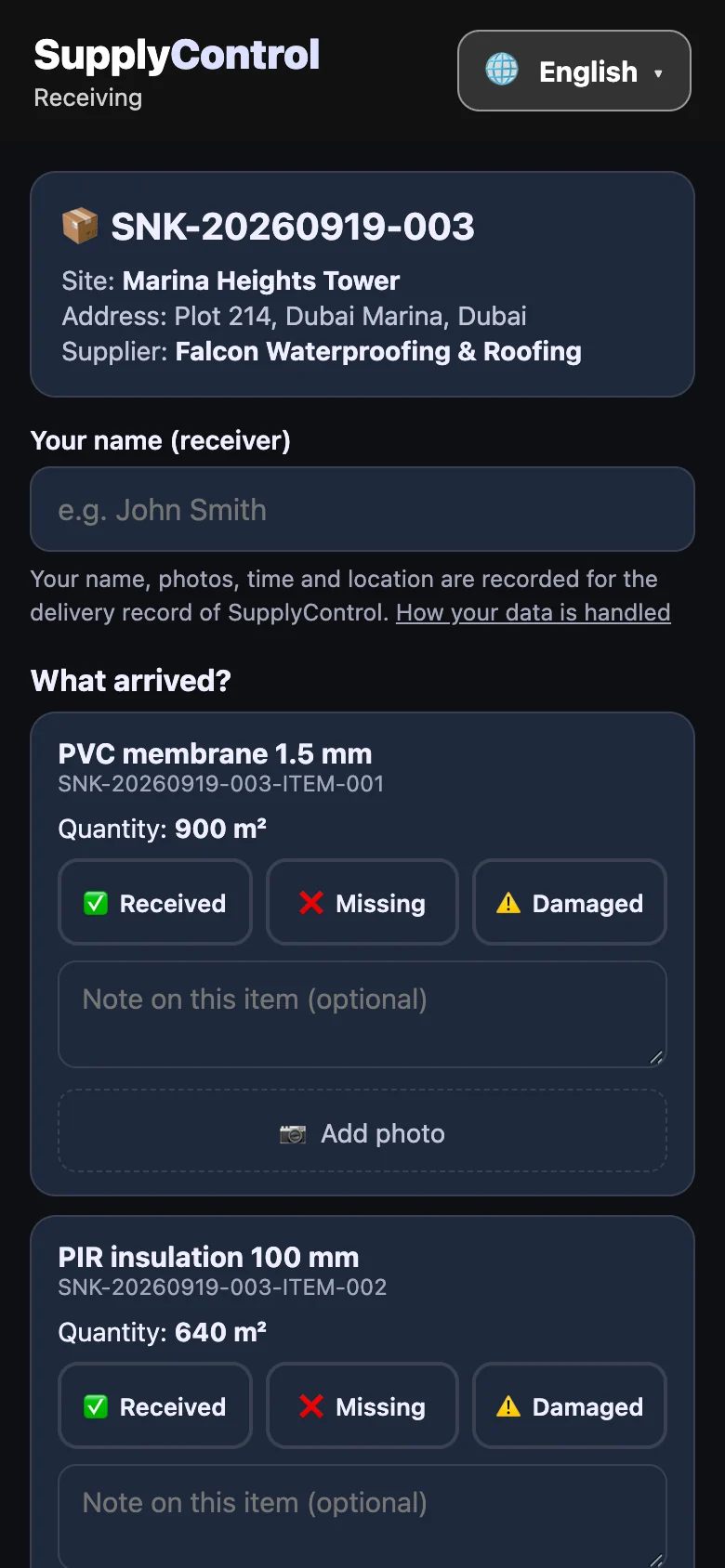
A label on the pallet, an ordinary camera, and a page with three buttons for every item: received, missing, damaged. The photo attaches to that exact line. Time and GPS are saved on their own.
- Nothing to learn: the page is simpler than ordering food
- For one-off receivers the link can be protected with a PIN
- If the camera will not read the code, open qr.global.snabkontrol.ru and scan it in the browser
5 · Material requests
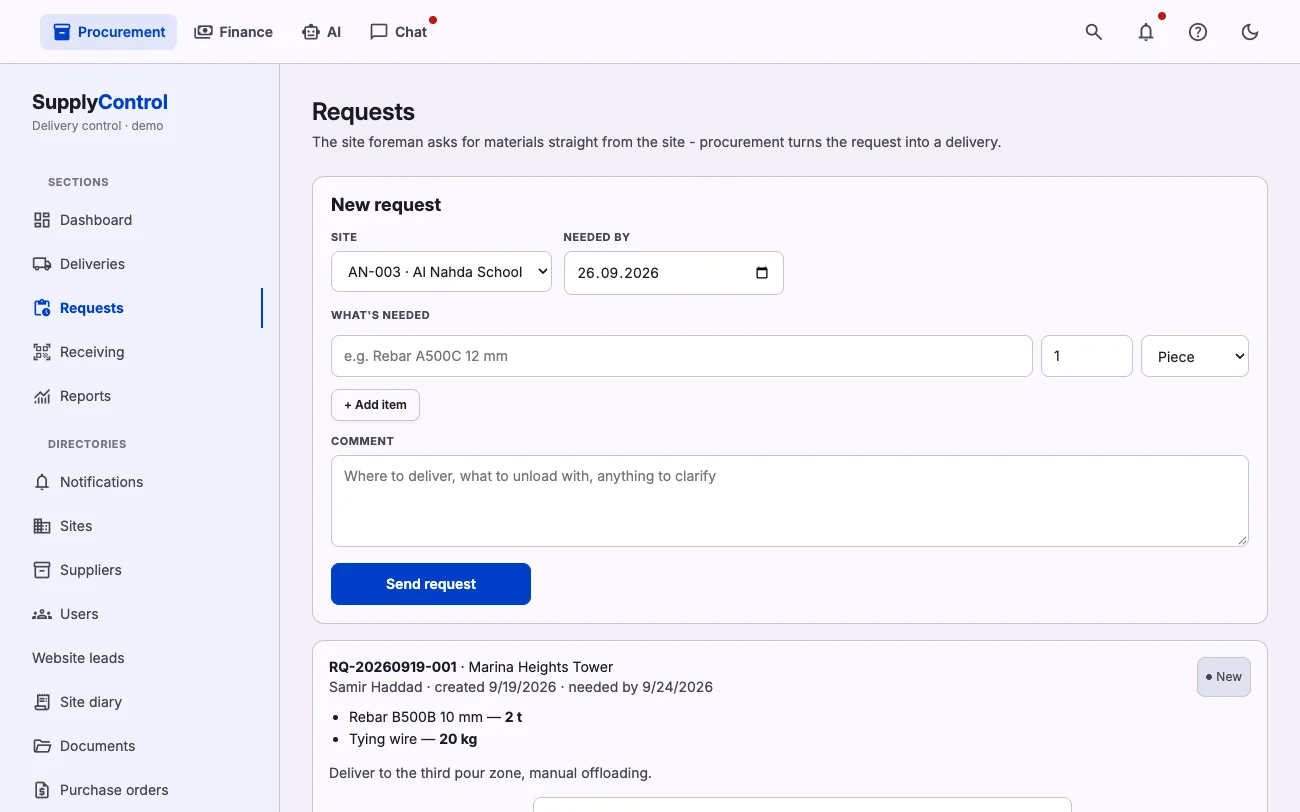
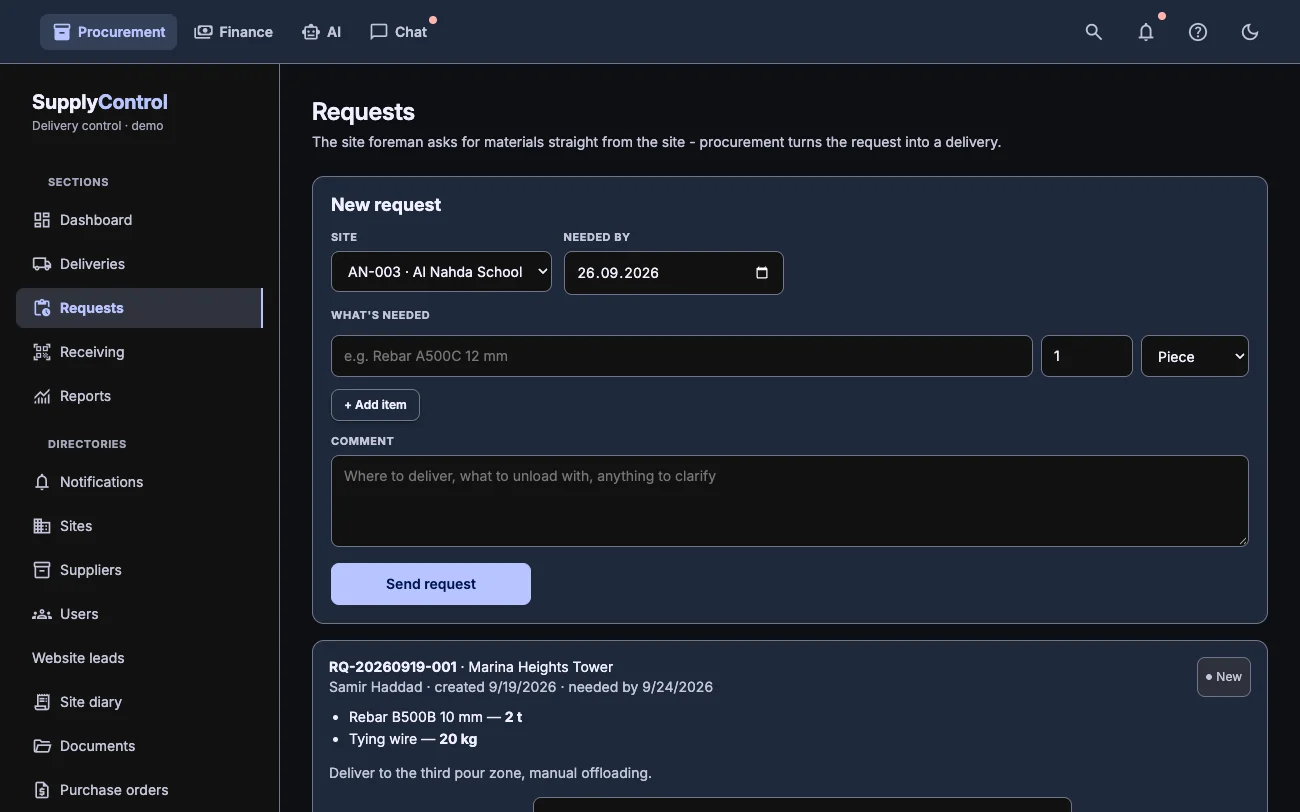
Out of material? A request from site takes two minutes
The foreman sends a request from the app: site, items, date needed. Procurement sees it immediately, picks it up and turns it into a delivery with one button. The foreman is notified and then receives that same load.
- No phone calls and no messages lost in a group chat
- A request can only be rejected with a reason, and the author sees it
- Line items carry over into the delivery and the labels print straight away
6 · AI buyer
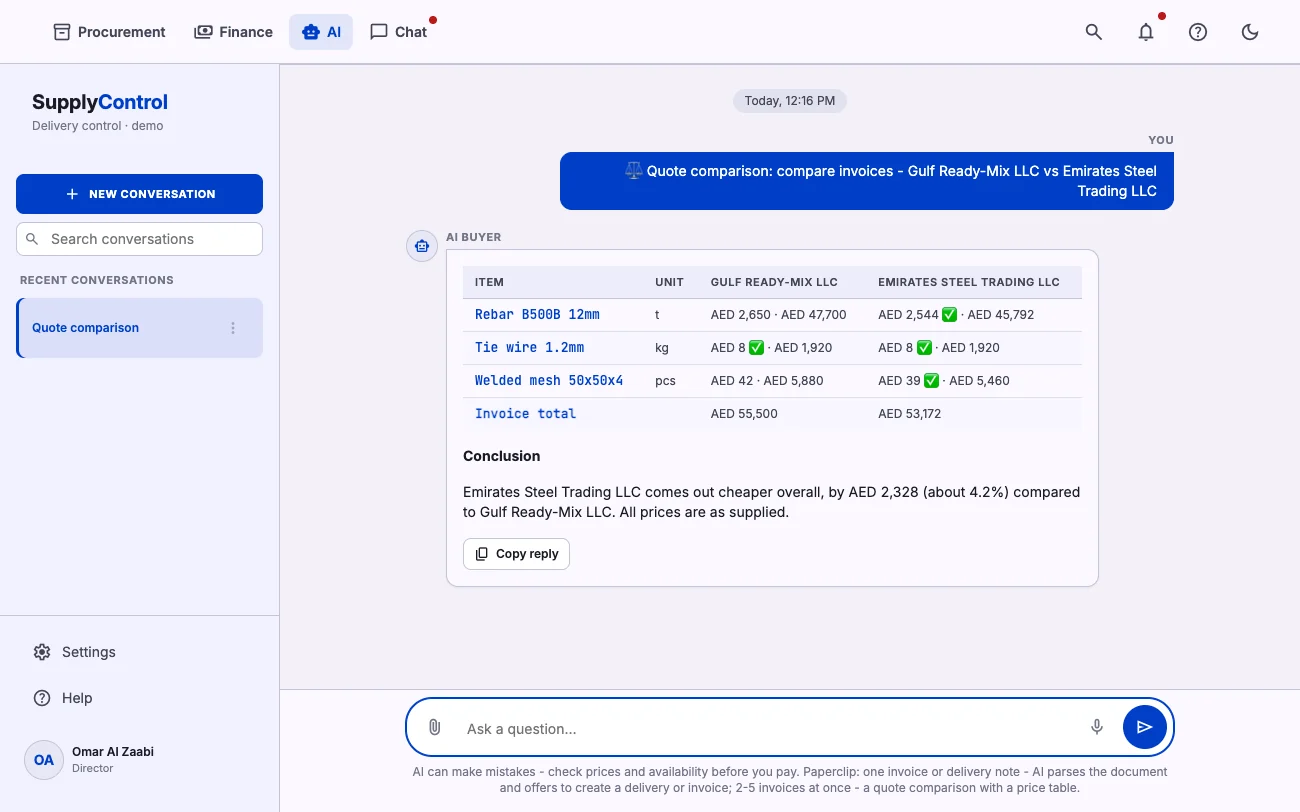
Attach an invoice, get the line items. Attach two, get a comparison
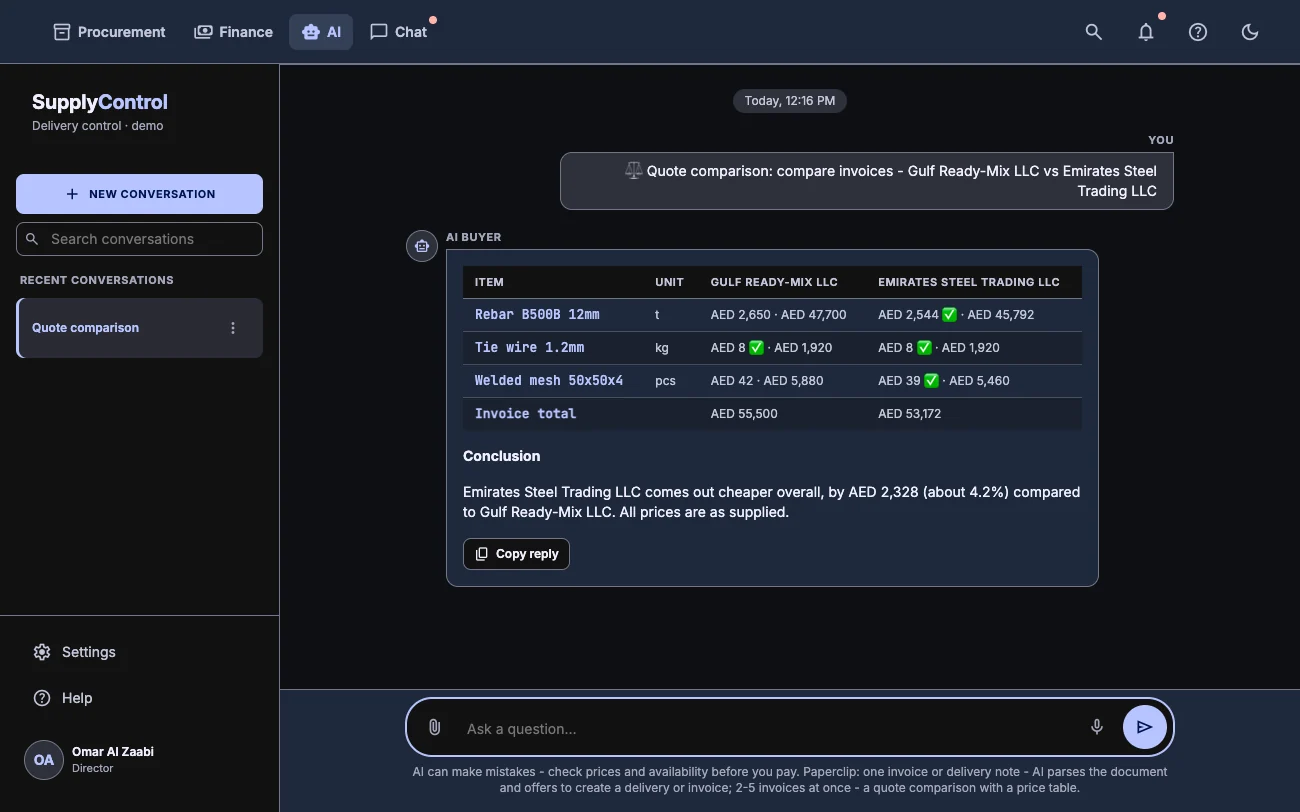
Attach an invoice or a delivery note in the chat and AI reads the document there and then, and offers to create the delivery or log the invoice. Attach two and you get a table with the better price highlighted on every line, plus the verdict: who is cheaper in total and which items to split. The same assistant searches prices with sources and answers questions about your own deliveries.
- Phone photos, scans and PDFs are read the same way
- The parsed document and the comparison stay in the conversation, so you can come back to them
- Personal data is masked before anything is sent to the model
7 · Team chat
The conversation sits next to the deliveries
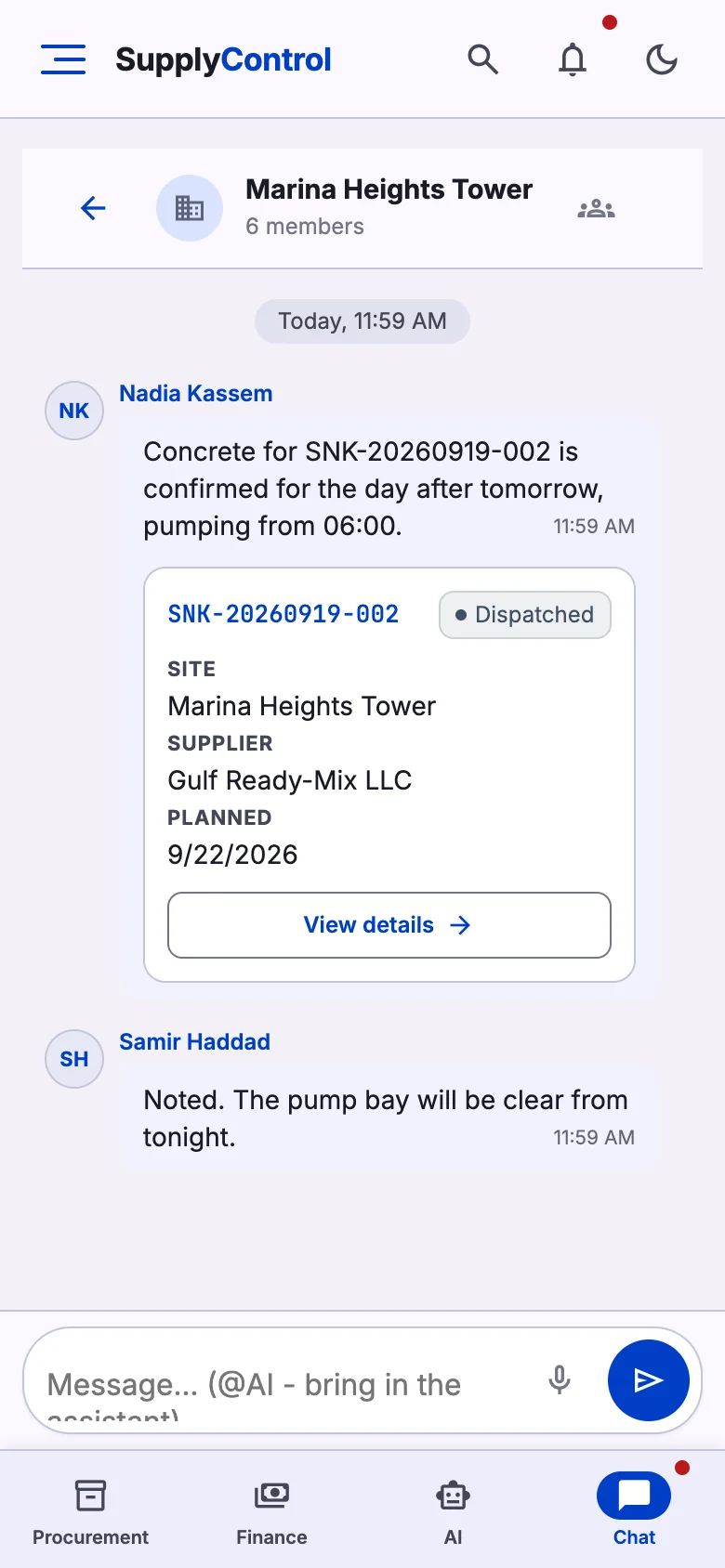
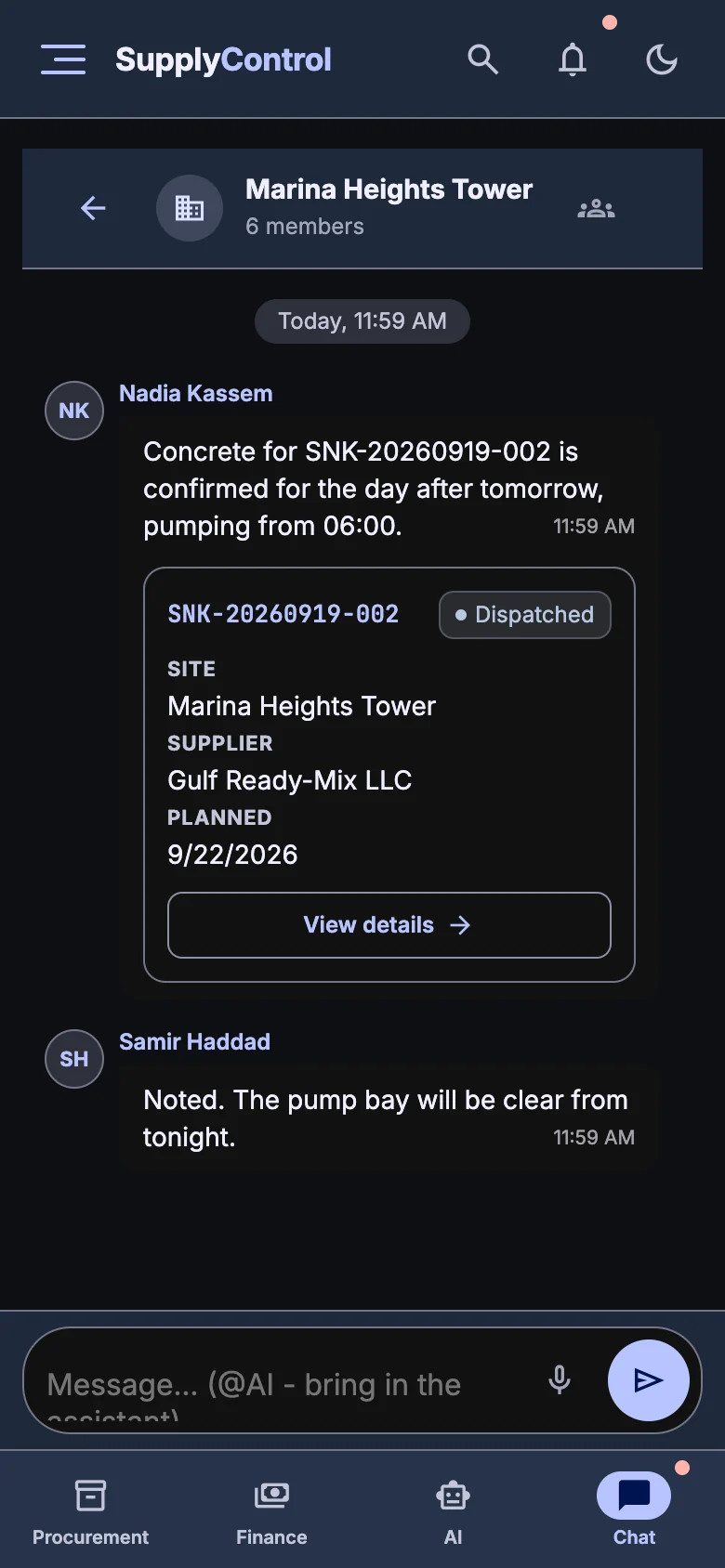
Direct messages and a chat per site. Voice notes are transcribed, delivery numbers turn into cards you can open in the message. Type @AI and the assistant answers in the same chat.
- A delivery number in a message becomes a card with its current status
- Any voice note can be read as text instead of listened to
- Notifications arrive as push on the phone and by email
8 · Budgets and reports
Site budget against what actually happened
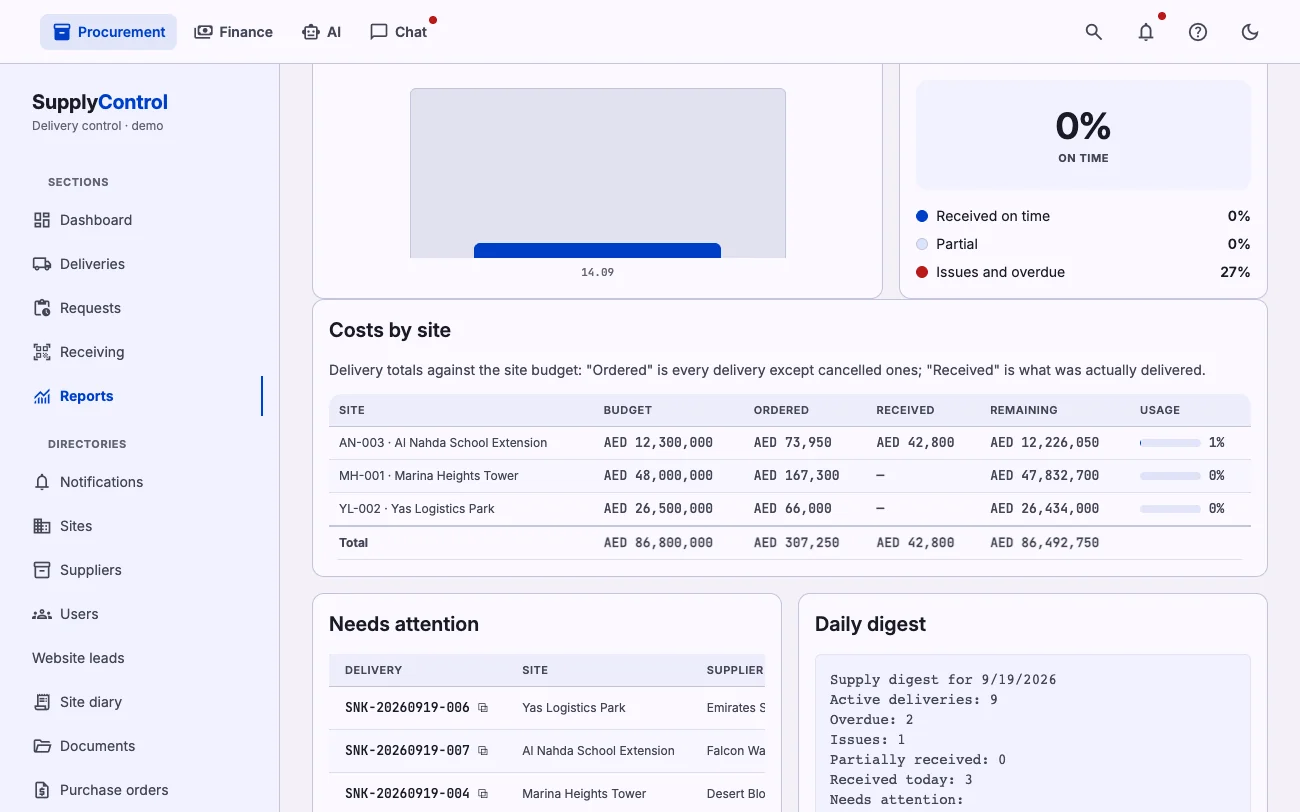
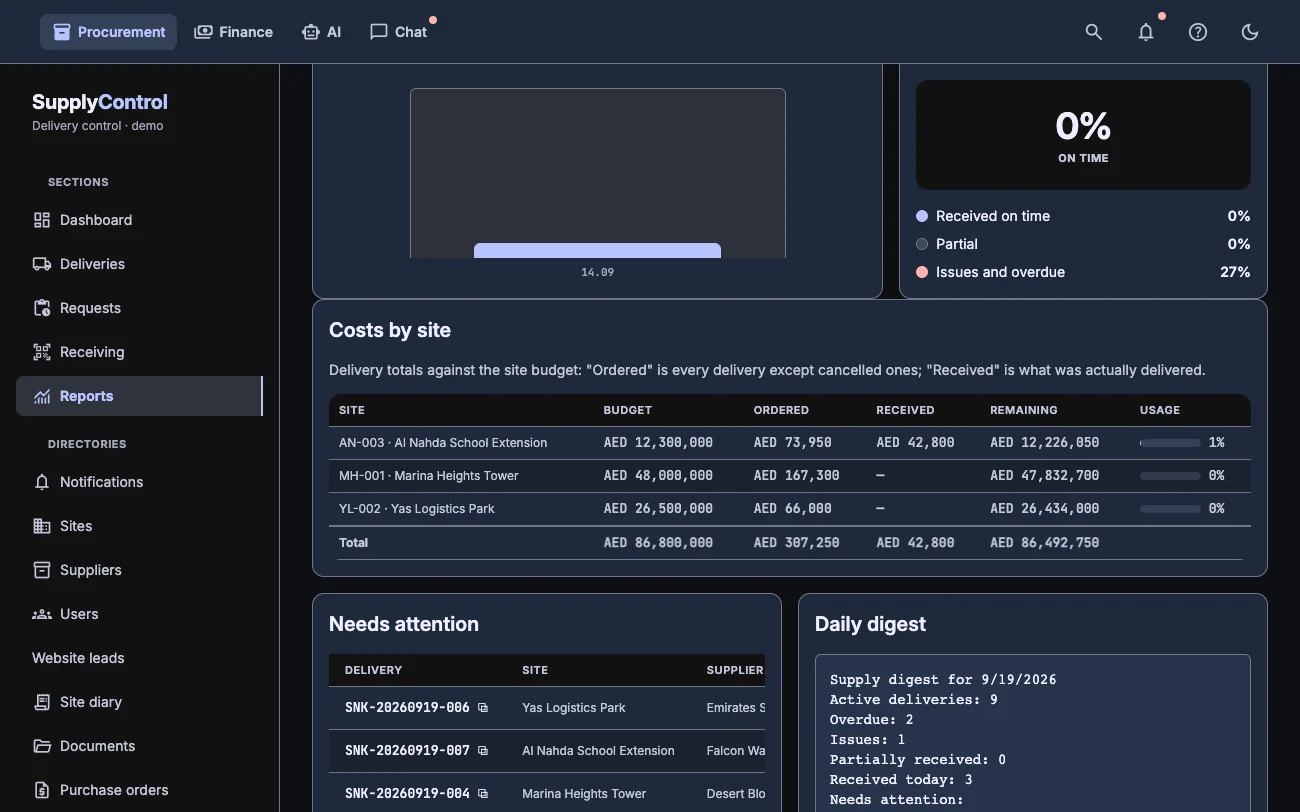
Delivery value against the site budget: ordered, received, remaining. An overspend is visible before the payment goes out. Next to it, weekly reports, on-time delivery share, and exports for the accounting system.
- The budget bar turns red as soon as the site goes over
- CSV exports: deliveries by line item with tax IDs and values, and the invoice register separately
- The director's digest counts both overdue deliveries and invoices due
Getting started
A day to start, not a quarter to implement
Add your sites and suppliers, print the first labels, spend an hour with the buyer. The site crew has nothing to learn at all.
Sites, suppliers and office users. Import them from a spreadsheet if you have one.
Enter one real load, print the labels and receive it together with your foreman.
After a week, look at the report and decide what to roll out next.